Travel eSIM has no internet? Check these settings first
A practical checklist for installation errors, no signal, wrong data-line selection and an exhausted allowance, before deleting your eSIM.
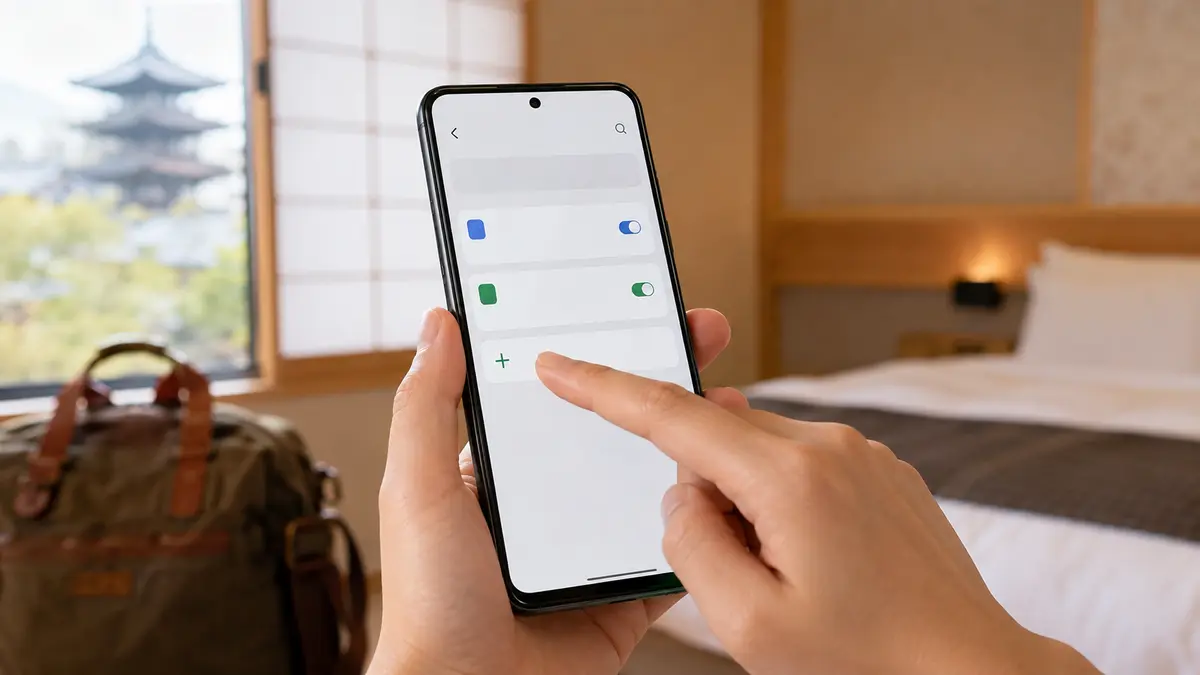
Android is a family of devices, not one eSIM setup process. A Samsung Galaxy and a Google Pixel can have different menus, and regional variants can have different capabilities. Check the exact model, software and carrier-lock status before ordering a Japan travel eSIM.
This guide covers supported Galaxy and Pixel devices. It does not certify every Samsung, Pixel, Oppo or Xiaomi model as compatible.
Find the eSIM option in your phone's SIM settings and confirm compatibility with the manufacturer or carrier if it is missing. A phone having two physical SIM slots is not proof that it supports eSIM.
Use a reliable internet connection for installation. Keep the order email and QR code available on a second screen if your device cannot scan a saved image. Never post that QR code in a public group.
Read the supplied activation conditions before adding the profile. Installing the profile and starting its paid validity are not necessarily the same event; the purchased plan's instructions decide when to install and use it.
Samsung's guide describes opening Settings, then Connections and SIM card manager. Choose the option to add a mobile plan, select the QR-code method and scan the supplied code. Some software uses labels such as SIM manager or Add eSIM.
Follow the displayed prompts to download the profile. If you use manual entry instead, copy only the activation details supplied for your order. Do not borrow another person's activation code or guess an APN.
Google's current path is Settings, Network & internet, SIMs, Add SIM and Set up an eSIM. Follow the displayed prompts for the installation method supplied by your provider. Older software or carrier-customised versions can use different labels.
After installation, select which line will supply mobile data. Pixel allows separate preferences for calls, messages and data; these do not have to be the same line.
At the destination, enable the travel profile and choose it for mobile data. Follow the roaming setting specified in the order for that profile. Check your home line separately so that it does not unexpectedly provide roaming data.
Keeping a home SIM active can preserve access to its number, but calls, SMS availability and overseas charges depend on its carrier. A data-only travel eSIM does not add ordinary voice calls or guarantee verification messages.
Turn Wi-Fi off briefly and test a small page. If it fails, follow the no-internet checklist before removing anything. Support can check the profile and plan conditions; repeated deletion can make recovery harder.
Compare allowance, validity and hotspot support on the exact plan page. For a Singapore-only stay, start with Singapore plans; for Seoul or Busan, start with South Korea plans. Check the coverage list separately if your trip crosses a border.
For a second traveller using Apple, see the iPhone setup guide. If the menu differs from these examples, contact English support with your exact model and software version before buying.
See Samsung's Galaxy eSIM guide, Google's eSIM setup guide and Google's mobile-network settings. Manufacturer instructions explain the phone; the order instructions explain the plan.
A practical checklist for installation errors, no signal, wrong data-line selection and an exhausted allowance, before deleting your eSIM.
Check your exact iPhone, install your travel eSIM, choose the correct data line and keep control of home-carrier roaming charges.