Install a travel eSIM on Samsung Galaxy or Google Pixel
Separate setup paths for Samsung Galaxy and Google Pixel, with checks for device variants, mobile-data selection and plan-specific roaming instructions.
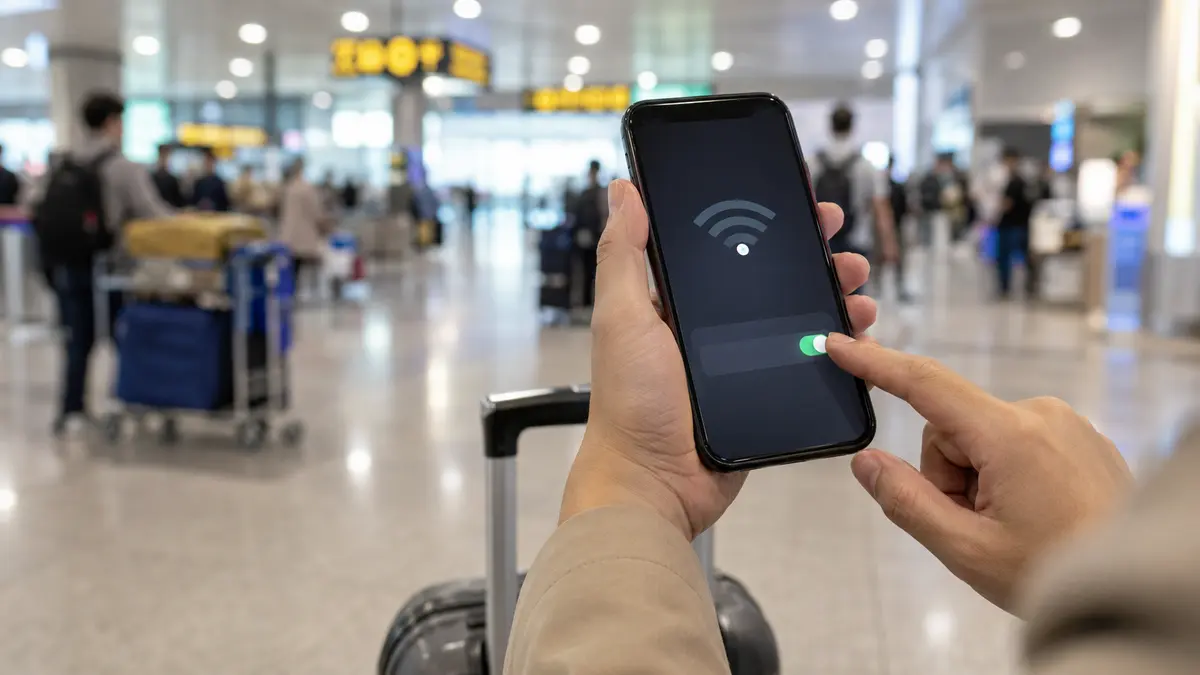
First decide what is failing: the eSIM profile will not install, the phone shows no mobile signal, or it has signal but no internet. Those are different problems. Keep a Wi-Fi connection available while you check, and keep your order email nearby.
Do not buy another plan or delete the installed eSIM as your first response. Support needs to know what happened, and not every purchased profile can be installed again.
Check the exact device's eSIM support, carrier-lock status and internet connection. Confirm that you are using the QR code for this order, on the intended phone. If the device reports that the code is already used or invalid, note the exact error and contact English support.
Device-menu help is available in the iPhone guide and Samsung/Pixel guide.
Read the selected plan's coverage and activation conditions. An installed profile need not connect before you reach a supported country. A plan for Japan does not automatically cover a stop in South Korea, and a Singapore plan does not automatically cover Malaysia.
Check whether the plan has started, expired or used its allowance, using the information supplied with your order. A daily allowance and a total trip allowance behave differently. Do not assume every plan keeps working at a reduced speed after its high-speed data ends.
Make sure the travel profile is enabled and selected for mobile data. On a dual-SIM phone, signal bars may belong to the home line while data is assigned to the wrong SIM.
Check the travel line's data-roaming setting against the order instructions. Keep the home line's roaming choices separate. Disable Wi-Fi briefly for the connection test so that a working airport hotspot does not hide a mobile-data problem.
Try toggling Airplane Mode, turning the affected line off and on, then restarting the phone. Apple documents these as initial eSIM checks. Test after each change rather than changing every setting together.
Use the operator-selection instructions supplied for your plan. For APN settings, use only the value supplied with the order or confirmed by support; random values from a different provider's blog can make diagnosis harder. Avoid a full network reset until you understand what settings it will remove.
Test a small page and a second app. If they work, check the affected app's cellular-data permission and settings. If you normally use a VPN or custom DNS service, temporarily test without it where appropriate, then restore your usual settings. This is a diagnostic check, not a promise that an eSIM can access every service.
Send your order ID, country and current location, exact phone model, software version, error text and a screenshot of the relevant SIM settings through the private support channel. Explain whether installation, signal or internet access failed and which checks you tried.
Do not include payment-card details, passwords or a public copy of the QR code. Follow the refund policy if support confirms a plan fault; this checklist does not change refund eligibility.
Before your next trip, compare the current Japan, South Korea or Singapore plans against every country and travel day on your route.
Device checks are supported by Apple's eSIM troubleshooting guidance, Apple's carrier-settings guide and Google's mobile-network settings. Activation, APN and allowance rules remain specific to the purchased plan.
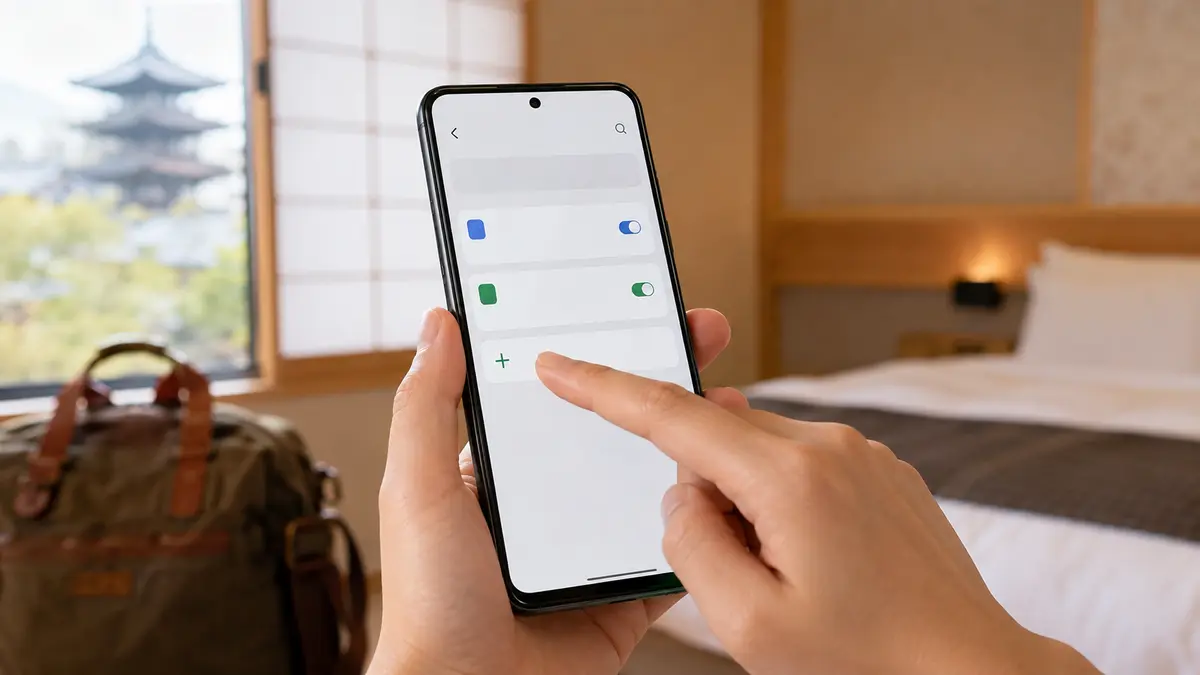
Separate setup paths for Samsung Galaxy and Google Pixel, with checks for device variants, mobile-data selection and plan-specific roaming instructions.
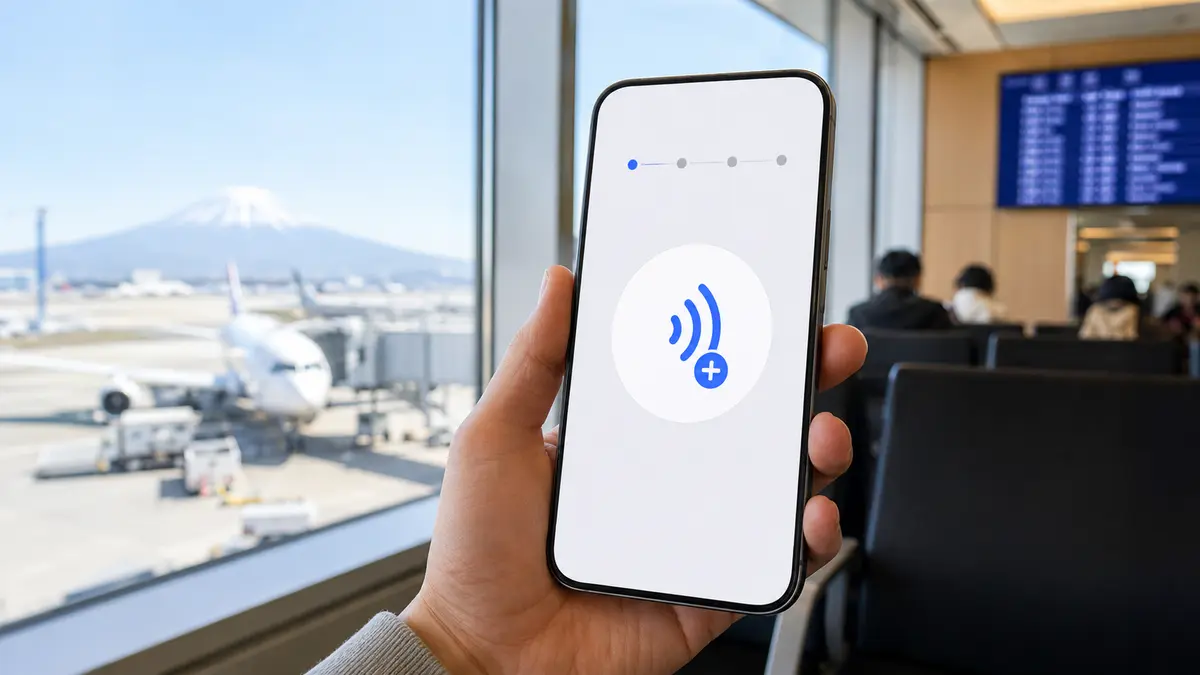
Check your exact iPhone, install your travel eSIM, choose the correct data line and keep control of home-carrier roaming charges.